How to change your profile display (VIP)
 By jerxUpdated September 6, 2026
VIP members can change how their profile presents. There are three separate options, all in Settings, Edit Profile, Main. Each one requires VIP, and the Discord options also need a linked Discord account. See What is VIP?.
First: link Discord (for the Discord options)
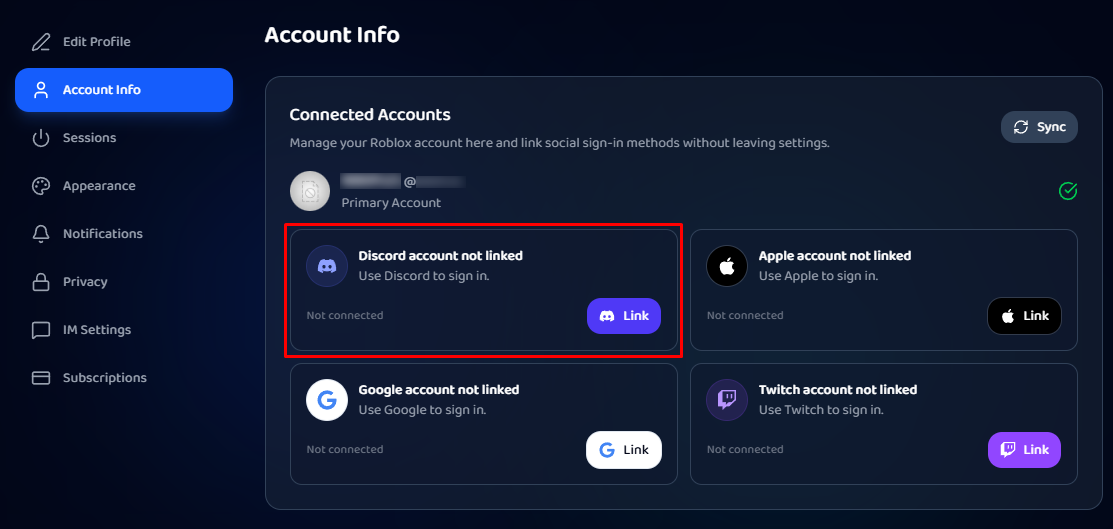
If you want to display as Discord or sync your Discord decoration, link Discord first:
- Go to Settings, open Account Info.
- In Connected Accounts, find the Discord card and click Link.
- Approve the connection, then return to Settings.
Profile Display (Roblox or Discord)
- Open Settings, then Edit Profile, on the Main sub-tab.
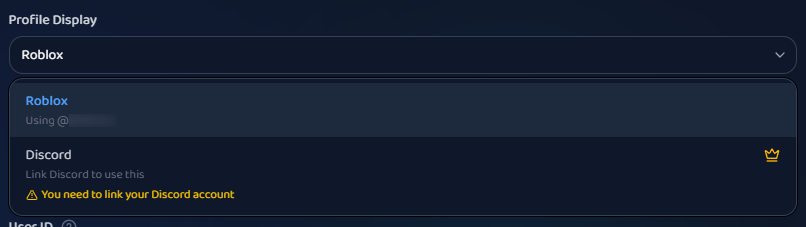
- Open the Profile Display dropdown.
- Choose Roblox (shows your @Roblox name) or Discord (shows your @Discord name, VIP only).
- Click Save Changes.
Non-VIP members see a VIP badge and a lock on the Discord option. Without VIP you'll get "VIP status is required to use Discord profile display," and if Discord isn't linked yet, "You must link your Discord account before using Discord profile display."
Custom Display Name (VIP)
- In the same Main sub-tab, find the Display Name field.
- Type the name you want. It's capped at 20 characters.
- Click Save Changes.
This is VIP only. Non-VIP members see the VIP badge and the field is locked.
Sync your Discord avatar decoration (VIP)
- In Edit Profile, find the Avatar Decoration card and click Change.
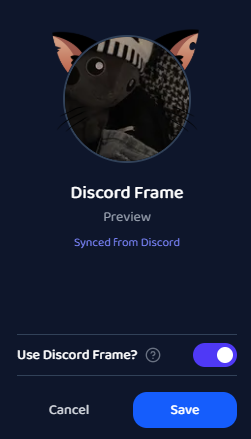
- In the Your Frames window, turn on Use Discord Frame?
- Save.
This needs VIP, a linked Discord account, and an active avatar decoration on your Discord. When it's on, your profile shows "Synced from Discord." If something's missing you'll see a matching message (for example "No active Discord avatar decoration found on your account").
Not seeing VIP options?
These features are VIP-only and enforced on the server, so the gates are real. If you have VIP and an option is still locked, make sure Discord is linked and your VIP is active under Subscriptions.
Was this article helpful?