
Browsing & filtering items
 By jerxUpdated September 6, 2026
The Items page is your game's complete catalog, every tradeable item with its current value and stats. It sits under the Catalog menu in each hub (for example, Blade Ball Items).
Browsing
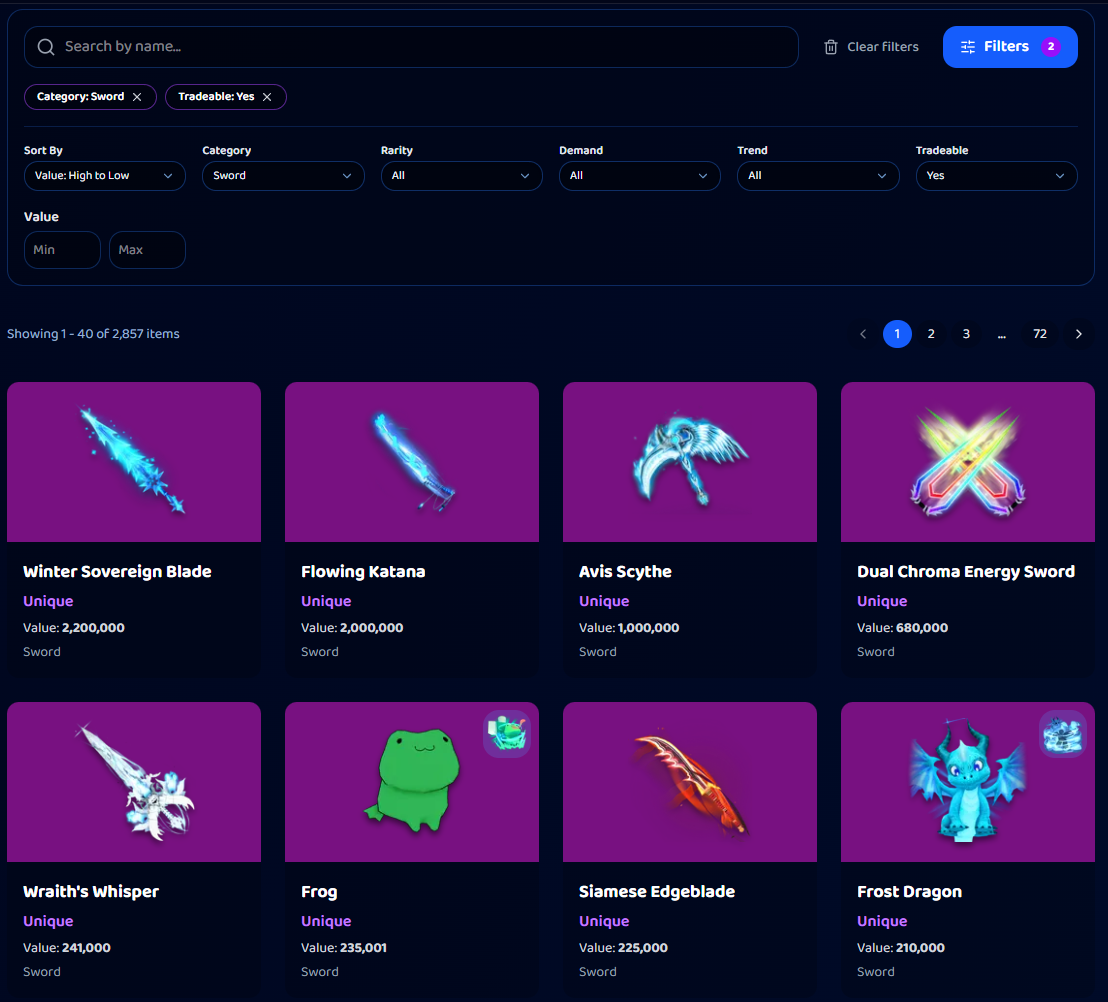
Items show as cards with their Value (and token value where applicable), and you can page through the whole catalog. Click any item to open its full item page. See Reading an item page.
Filtering
Narrow the list to exactly what you want with filters such as:
- Category or type: weapons, skins, pets, and so on (varies by game).
- Rarity: how scarce the item is.
- Demand: from Amazing down to Terrible.
- Value range: set a minimum and maximum.
Combine filters to answer questions like "which high-demand items are under 10k?" This is great for finding upgrade targets or things you can flip.
Searching
Use Search to jump straight to an item by name or acronym. The same item picker appears whenever you are adding items to a trade ad, the Calculator, or a deals filter, so the catalog is never more than a click away.
What the Catalog menu groups
In most hubs, Catalog bundles a few related views:
- Items: the value list (this page).
- Packs: bundle and pack items (select games).
- RAP Changes: recent sale-driven RAP moves (select games).
Tip
Learn to filter by demand and value range together. It is the quickest way to find items that are both affordable and easy to trade.
Was this article helpful?