How to link or unlink social accounts
 By jerxUpdated September 6, 2026
You can connect social accounts for sign-in and, for Discord, to unlock VIP profile features. Manage them all from the Account Info tab.
Where to manage connections
- Go to Settings and open the Account Info tab.
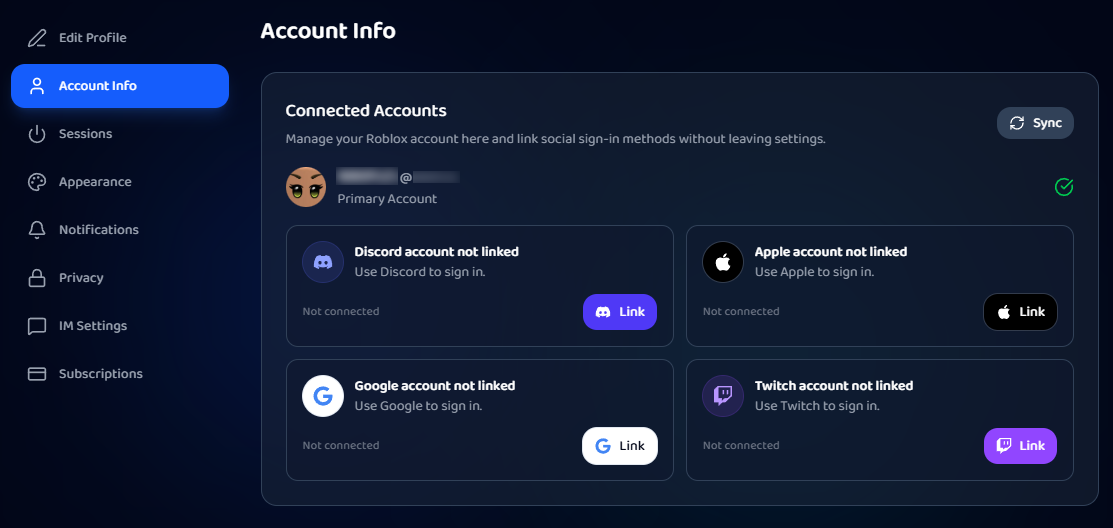
- Find the Connected Accounts section.
You'll see your Roblox account listed as your Primary Account (you can't unlink it here, it's what your Bloxtsar identity is built on), plus cards for Discord, Apple, Google, and Twitch.
Link an account
- Click Link on the provider you want.
- Approve the connection on the provider's page.
- You'll return to Settings with the account connected.
Unlink an account
Click Unlink on a connected provider. Most unlink right away.
Discord is different: unlinking opens an "Unlink Discord?" confirmation, since it removes Discord sign-in and Discord-based features from your account. In some cases Bloxtsar may ask you to re-verify the linked Discord account first.
Why link Discord?
Linking Discord lets VIP members display their Discord identity, use a custom Discord-based look, and sync their Discord avatar decoration. See How to change your profile display (VIP).
Syncing your profiles
Use the Sync button at the top of Connected Accounts to refresh your Roblox and Discord profile data (avatar, name). It has a short cooldown between uses.
Was this article helpful?